Pre-Installation Checklist
Before launching the installation files, make sure your smartphone or tablet meets the baseline technical requirements to prevent file corruption or "App Not Installed" errors:
- Storage Space: Ensure at least 150MB of free internal storage. Sideloaded app files must be written directly to primary flash storage rather than external SD cards.
- Stable Connection: The initial launch executes an asset integrity handshake and unpacks game assets. Connect to a stable 4G/5G or fiber Wi-Fi network (optimized for CelcomDigi, Maxis, U Mobile, and Singtel).
- Verified 918Kiss Download: Ensure you have acquired genuine installation packages from our verified 918Kiss download portal before proceeding.
Because the real-money gaming client is distributed directly via an APK rather than the Google Play Store, modern Android versions (Android 10 through Android 15) require manual authorization for sideloading:
- Download the APK: Begin your 918Kiss download to fetch the authenticated 918Kiss APK package directly from our download directory.
- Locate the Package: Open your device's Files, My Files, or Downloads folder. Tap the downloaded 918Kiss APK file.
- Enable Unknown Apps: When prompted with "For your security, your phone is not allowed to install unknown apps from this source", tap Settings.
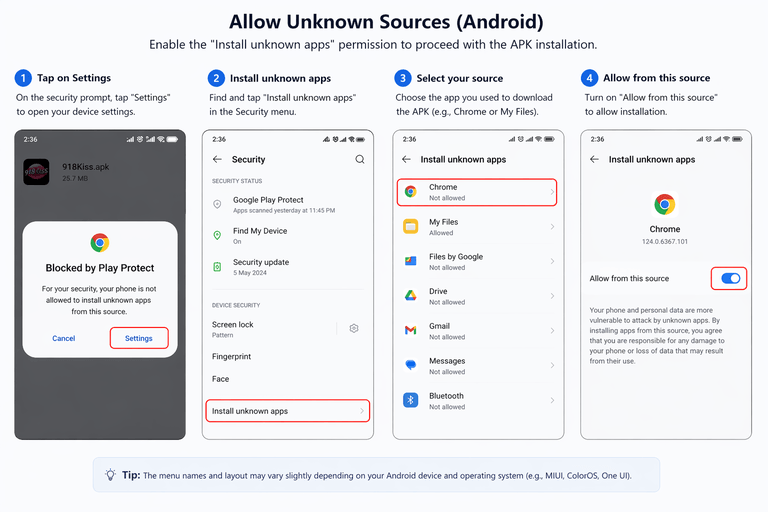
- Toggle Permission ON: Switch the toggle next to "Allow from this source" to ON.
- Complete Installation: Tap the back button to return to the installation prompt, tap Install, and wait for completion. Tap Open to start 918Kiss.
Apple iOS requires users to manually verify and trust the Enterprise Developer Profile that signs the mobile client. Without completing this one-time authorization, iOS will display an "Untrusted Enterprise Developer" warning:
- Download the Mobile Profile: Open Safari, navigate to the 918Kiss download hub, and tap Download 918Kiss iOS. Tap Install when prompted.
- Check Home Screen: The 918Kiss app icon will install on your home screen. If you tap it now, you will see an "Untrusted Enterprise Developer" alert. Tap Cancel.
- Navigate to Device Management: Open your iPhone Settings app > tap General > scroll down and select VPN & Device Management (or Profiles & Device Management).
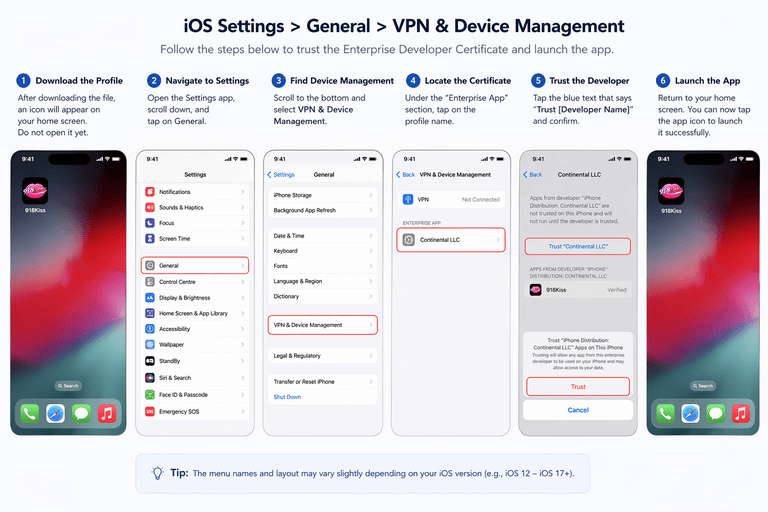
- Select Enterprise Developer: Under the Enterprise App section, tap the developer certificate listed for 918Kiss.
- Trust the Profile: Tap the blue "Trust [Developer Name]" link, then tap Trust in the confirmation dialog.
- Launch the Game: Return to your home screen and open 918Kiss. The client will launch immediately without errors.
iOS Certificate Maintenance Tip:
Apple periodically resets enterprise developer certificates. If your app abruptly stops opening with an "Unable to Verify App" message, uninstall the app, clear Safari history, and fetch the refreshed profile directly from our
download hub.
Now that 918Kiss is installed, you can access the platform in two ways:
1. Free Demo Test Credentials (No Registration Required)
If you wish to test game payout frequencies, graphics, and mechanics on popular slots like Great Blue, Highway Kings, or Ocean King, enter public demo credentials directly on the login screen:
- Login ID:
test1000 through test2000 (e.g. test1140)
- Password:
1234
2. Verified 918Kiss Account Registration
To register a permanent real-money player account with deposit and withdrawal capabilities:
- Contact our 24/7 registration desk via the Telegram link below.
- Provide your preferred username. The account creation process is instant and free of charge.
- Receive your unique Player ID and temporary password. Change your password on your first login for maximum security.
- Fund your player wallet in MYR or SGD using FPX instant online banking, DuitNow QR, Touch 'n Go eWallet, or direct transfer via Maybank, CIMB, and Public Bank.
Advanced Troubleshooting Guide
If you encounter an unexpected installation error, locate your symptom below for immediate resolution:
| Error Prompt / Symptom |
Platform |
Technical Resolution |
| "App Not Installed" |
Android |
Caused by insufficient internal storage, or a corrupted legacy version on the device. Free up at least 150MB of internal storage and uninstall any previous build before re-installing. |
| "Untrusted Enterprise Developer" |
iOS |
The configuration certificate is untrusted. Open Settings > General > VPN & Device Management and select "Trust" for the developer profile. |
| Blank Black Screen on Startup |
Both |
Connection timeout while fetching game asset packages. Toggle between Wi-Fi and mobile data (4G/5G), force close the application, and reopen. |
| "Parse Error / Problem Parsing Package" |
Android |
The downloaded APK was interrupted or corrupted during transfer. Delete the broken file, clear your browser cache, and re-download from our verified portal. |
| "Unable to Verify App" |
iOS |
Apple has revoked the enterprise profile. Delete the application and install the freshly signed iOS profile from 918KissWiki. |
